
Free Print Resources
Got an Idea? Let us Help You Bring it to Life!
Need help submitting your files for print and mailing? We've got you covered! We understand that submitting files can be a daunting task, so we've created this page to provide you with all the information and resources you need to get the job done quickly and easily. You can also contact us directly with any questions you may have.
Anatomy of a Print File

- Bleed
When artwork and/or background colors go to the edge, or “bleed off” the edge of the page. To achieve this, the artwork or background color is created larger than the finished piece. The extra artwork or background is printed and then trimmed down to the correct finished size. This is necessary to avoid having unprinted areas show when the artwork is cut down to the final size in post-press. - Trim Line
The actual cut line. This is used to show where the edge of the piece should be trimmed off. This will cut the bleed area off, making a clean, consistent print. - Caution Zone
This is the area of the design where all of your critical information will be placed. Text should be positioned at least 1/8 (.125) inch away from the trim line to ensure the text does not get cut off or end up too close to the edge of the finished piece, should the paper shift during the trimming process. - Orientation
This is the direction of the print. This is especially important when designing files with folds to ensure alignment.
General Print Terms
- Proof
When original artwork is uploaded to your account, the artwork is processed for printing. An electronic pdf proof is generated for you to review prior to the ull print run. Once a proof is accepted, the job will be printed in full. - Press-Ready
A file that is ready to upload. A press-ready file is high resolution, correctly sized, and in one of the four acceptable file formats (PDF, tiff, jpg or eps). - Resolution
The resolution, commonly referred to as dpi or dots-per-inch, means the clarity of the image. The higher the dpi the clearer the picture. To achieve a crisp, clearimage on the finished product, 300dpi or higher images are required.

Setting Up your Artwork for a Flat Piece Without a Template
Our templates are designed for placement purposes only and are highly recommended when creating artwork for products that fold or die cut such as door hangers or presentation folders. When creating a product that is flat, it is not necessary to use a template.
- Start a new document. Term varies depending on software program, but can be document, page, canvas or artboard.
- Set document size 1/4 (.25) inch larger than the finished size to allow for appropriate bleed. Examples: For a 6 x 4 postcard the document size would be 6.25 x 4.25. For a 3.5 x 2 business card, the document size would be 3.75 x 2.25 For a 8.5 x 11 portrait flyer, the document size would be 8.75 x11.25.
- Place a guideline 1/4 (.25) inch inside the document size on each of the 4 sides to allow for caution zone. Term varies depending on software program, can be a guideline, guide or margin. Search under the help menu or your program for “Rulers” or “Guidelines”.
- Design your artwork. Any background color or image that is meant to go to the edge of the finished card, needs to extend to the edge of the document (bleed), text needs to stay inside the guidelines (caution zone).
- Create your PDF, tiff, jpg, or eps file. Process varies depending on software program. You may need to save, export or print the file to a PDF, tiff, jpg or eps. Search under the help menu for “high resolution”, “press ready” or “press quality”.
- Upload your File. Depending on your conversation with our customer service staff, you will either email the file to us, or upload via FTP. We are happy to help in any way during this process.
- Review your PDF proof. The proof is the file that has been processed for printing. If your file contains more than one page, click on the image on the screen to download a full pdf proof so you can review all the pages. Fonts, images, and colors can change or disappear during the proofing process. It is critical that you review the PDF proof. We print from the PDF proof and not from the original file.
- Send your job to press. If the proof looks good, confirm that your proof is ready, and we will send the job to press.
Setting Up your Artwork for a Flat Piece Using a Provided Template
Our templates are designed for placement purposes only and are highly recommended when creating artwork for products that fold or die cut such as door hangers or presentation folders. Open the appropriate template depending on your design program. Templates are 1 inch larger than finished size to allow for instructions. Following are instructions on how to set up your files using our templates in various programs.
Photoshop:
1. Open the jpg file in Photoshop.
2. Set guidelines at the bleed and caution zone lines. (We will trim on the blue center line, however, artwork should never end at the blue center trim line. If it is meant to go to the edge of the finished piece, it should extend to the red bleed line. Text should stay inside the caution zone line.)
3. Delete the template layer.
4. Save as a Photoshop PDF.
Illustrator:
1. Open the ai file in Illustrator. Templates are saved as Illustrator v.10
2. Set guidelines at the bleed and caution zone lines. (We will trim on the blue center line; however, artwork should never end at the blue center line. If it is meant to go to the edge of the finished piece, it should extend to the red bleed line. Text should stay inside the caution zone line.)
3. Delete the template layer.
4. Save as an PDF or eps.
InDesign:
1. Place the PDF file in InDesign. Image box should be sized 1 inch larger than finished size.
2. Set guidelines at the bleed and caution zone lines. (We will trim on the blue center line; however, artwork should never end at the blue center line. If it is meant to go to the edge of the finished piece, it should extend to the red bleed line. Text should stay inside the caution zone line.)
3. Delete the template image box.
4. Export as a PDF.
Publisher:
1. Create a new Publisher document that measures 1 inch larger than the finished size. (Do not use Publisher templates, as they will not allow to save file with bleed.)
2. Place the jpg as you would place any other image. Size the picture box to page size.
3. Set guidelines at the bleed and caution zone lines. (We will trim on the trim line, but artwork should never touch the blue trim line. If it is meant to go to the edge of the finished piece, it should extend to the red bleed line and text should stay inside the caution zone line.)
4. Delete the template image box.
5. Print to a PDF.
File Preparation and Upload Checklist
Please read and check each of the following criteria to avoid the most common print/upload problems. This will help ensure your print order progresses through production without delay and produces the best possible finished product.

Bleed
My file is 1/4 inch (.25) larger than the size I ordered.For a 8.5 x 11 flyer, the file measures 8.75 x 11.25; for a 3.5 x 2 business card, the file measures 3.75 x 2.25
-
Caution Zone
All of the text on my file is at least 1/8 inch (.125) away from the trim line or 1/4 inch (.25) from the edge of the document.
-
Resolution
All of the images in my file have a resolution of 300dpi when placed at 100% in my document.
-
Color
My file was produced using CMYK colors; or I used RGB and/or PMS colors and I will let the proofing system convert my file to CMYK colors. I understand that the colors may change after the color conversion.
-
Fonts
All fonts used in my document were embedded when I created my PDF.Using PDF/X-1a:2001, high quality print, or press quality option when generating my PDF will ensure the fonts are embedded.
-
Borders
The border in my file is at least 1/4 inch (.25) from the bleed line. I understand that borders are not recommended on small pieces such as bookmarks and business cards.
-
File Orientation
My front and back sides have the same orientation, both are either portrait (vertical) or landscape (horizontal).
-
Artwork Orientation
I have verified that my finished piece will back up correctly when printed head-to-head.
-
For Booklet/Catalog
My booklet pages are in single pages, and combined into a multi-page PDF. My PDF has the same number of pages as my print order (12 page book has a 12-page PDF file). I DO NOT have my pages set up as reader spreads or printer spreads.
-
Proofread
I have spell checked and proofread my document and my PDF proof. I understand that my artwork will not be reviewed for spelling, grammar, or missing characters.
Design Templates
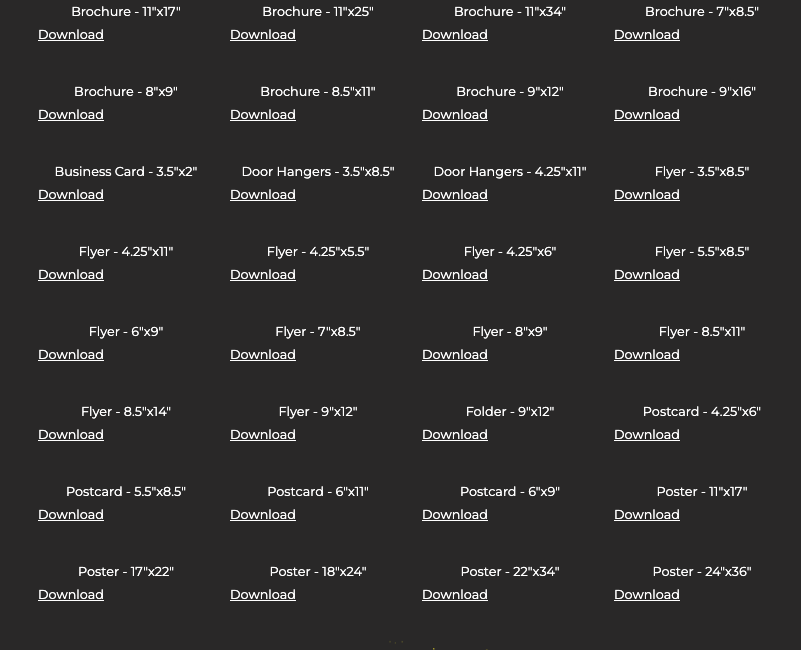
****need access to the Google Drive folder.

Grow your business.
Your business is unique so let your marketing stand out amongst the crowd with the help of a sign company near you in Asheville, NC. Request a quote today and let us connect you with the right solutions for your needs!